ssh-tunnel
SSH Tunnel for HTTP Traffic
Are You stuck behind a firewall?
Does your school, library, work, or parents control where you surf and what ports you have open? Do you surf on such public domains and need more privacy? Are you sick of failing proxies? If you answered 'Y' to any of these questions then this tutorial is for you.
My Story
My place of employment has a firewall and it blocks nearly all outbound protocols and many great sites, such as foxhop.net or youtube.com. I need a way to get around the blocks and not get caught.
Sections
Common Questions
What is the best way to get around a firewall?
Create an SSH tunnel from the work network to your home network.
My network administrator is smart, will I get caught?
No, you will most likely not get caught. All the firewall sees is a connection to a resource on the internet. When you browse the web using the tunnel all traffic is encrypted. If a network administrator captured packets he would only get garbage data. An SSH tunnel is basically a VPN between two computers or networks. 1337
Can a network admin stop a person or computer from tunneling?
The Admin will typically not know about the tunnel. From his view a tiny connection is being placed and is normally overlooked. The admin does have the ability to block the default SSH port 22. You can build your tunnel over any port (80 or 443).
Article Scope
We will discuss the steps of building an SSH Tunnel for HTTP traffic between two computers on different networks. This guide will cover both windows and linux localhosts.
Throughout this guide I will use the following terms, here are the definitions:
- localhost
-
The computer at work or school.
- remotehost
-
The computer or server that is offsite, which has the SSH server running.
What you need ...
- Credentials to a remotehost running an SSH server. (openssh-server)
- A localhost computer crippled by a pesky network firewall.
- An SSH client, For windows get Putty.exe
- Firefox ( Portable is best )
Why is this the best method?
- Most of the configuration is done from the localhost (while at school or work).
- You don't need admin rights to run Putty.exe, just place it on a USB drive.
- You don't need admin rights to run Firefox Portable, just place it on a USB drive.
- No changes need to be made on the remotehost ssh server.
SSH Tunnel created from a Windows localhost
Follow this guide if your localhost (school or work) computer is Windows based.
Configure the SSH Server
The remotehost just needs to have an SSH server installed, no configuration is needed.
This server could be running anywhere on the internet, we just need credentials to login.
To install openssh-server on Debian or Ubuntu linux type:
When I'm at work, I establish an SSH Tunnel to my remotehost webserver at home.
Keep in mind that this doesn't have to be your server, you just need credentials for SSH.
Configure the SSH Client
Download Putty.exe if you haven't already, you should follow along.
Double click Putty.exe.

The 'Host Name (or IP address)' box should point to the SSH enabled remoteserver.
Toggle the SSH radio button to set the port to 22. (The native SSH port).
Type a name into the 'Saved Sessions' box to save all the settings we toggle.
Click the save button.
There is a list of categories to the left of the putty window.
Navigate to: ( Connection > SSH > Tunnel )
You should be at a menu that is labeled 'Options controlling SSH port forwarding'.
Click the 'Dynamic' radio button.
Leave 'Destination' text box blank.
Type '7070' into the 'Source port' text box.
Click the 'Add' button.
Save your configuration by going back to the 'Session' category, selecting your saved session, and pressing the 'save' button.
Double-click your saved session.
A black terminal window should appear.
You will be prompted for a username and password.
You should be greeted by the server if successful. Leave the putty window open.
SSH Tunnel created from a Linux localhost
Follow this guide if your localhost (work or school) computer is Linux.
Create the tunnel
Open a terminal or console window, and enter the following command:
You will be prompted for credentials on the remotehost.
All you need to do is login to establish the tunnel.
Configure Firefox to use the SSH Tunnel
Setup Socks 5 proxy.
- Open Firefox.
- Click Edit -> Preferences
- Click the Advanced and Network tabs.
- Click the Settings... button.
- Click the Manual Proxy Configuration radio button
- In Socks Host type localhost. In port type 7070.
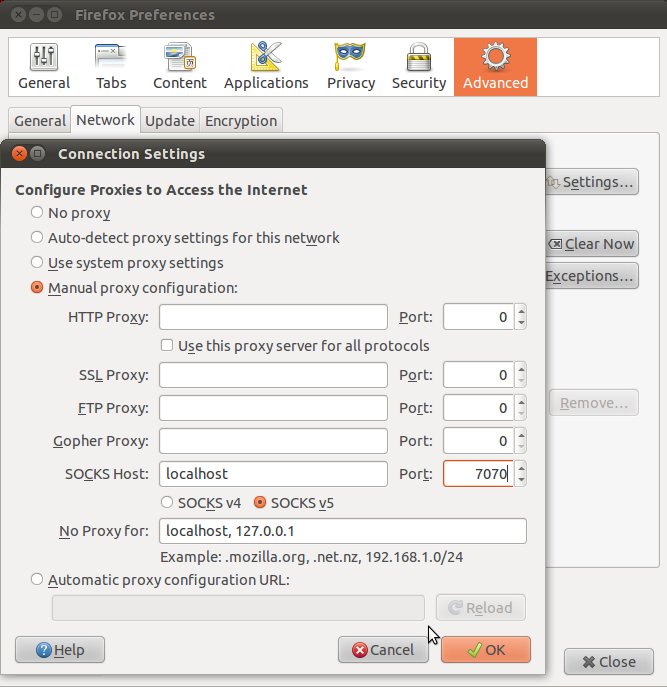
You should now be able to browse the Internet using your remote connection. All data will be passed through the remote hosts internet connection. All traffic will be encrypted between the localhost and the remotehost.
Tunnel to multiple vnc hosts behind a firewall
ssh -L <localport>:<remotehost>:<remoteport> <ssh-user>@<remote>

ssh -L 31337:remote.foxhop.net:5900 user@foxhop.net

ssh -L 31338:remote2.foxhop.net:5900 user@foxhop.net
Then open vnc and point to 127.0.0.1:31338 or 127.0.0.1:31337
Tunnel DNS requests in firefox
network.proxy.socks_remote_dns user set boolean true
Remote port forwarding a service over tunnel
In this scenario we are running a development web server (port 8888) on our workstation (joe) from our home network. We would like to grant access to this development web server to people on the work network. We have ssh access to a host (mary) on the work network.
We must enable GatewayPorts in mary:/etc/ssh/sshd_config to allow binding to 0.0.0.0 instead of 127.0.0.1:
# Allow this host to bind forwarded ports to 0.0.0.0 instead of 127.0.0.1
# Service will appear to run on this host, but will get forwarded over tunnel
GatewayPorts yes
We create a remote port forwarding tunnel from joe to mary:
When the tunnel opens, verify that mary is binding/listening to 0.0.0.0:8888:
Now people at work can access the home workstation web server running on joe by connecting to http://mary:8888 !
 Remarkbox
Comments